
WAVLINK USB 3.0 to HDMI
4.4Editor score
Supports up to 6 monitors
USB 3.0 connectivity
Compact portable design
This comprehensive guide compares the top 10 Displaylink adapters for 2026, evaluating compatibility, performance, and features to help you choose the right
Finding the right Displaylink adapter can transform your single-screen laptop into a powerful dual-monitor workstation. These devices use advanced technology to bypass native port limitations, allowing seamless extended desktop setups for Mac and Windows users alike.
We evaluated ten top-rated adapters based on compatibility, resolution support, build quality, and user feedback. Our analysis focuses on real-world performance for productivity tasks, ensuring you get reliable extended displays without frustrating driver issues or bandwidth bottlenecks.
Each pick highlights key strengths and potential trade-offs to match your specific workflow needs. Please note that prices and availability fluctuate frequently, so verify current details before purchasing to ensure you get the best value for your setup.
4.4Editor score

4.8Editor score

4.5Editor score
The following table provides a side-by-side comparison of all ten adapters, highlighting key specifications and unique features to help you quickly identify the best fit for your specific laptop and monitor configuration.



The ACASIS USB C to Dual HDMI adapter ranks as our top pick for its robust combination of dual 4K6 support and integrated 100W power delivery. With a 4.3 rating, it offers reliable performance for Mac and Windows users seeking to expand their workspace without clutter.
We may earn a commission when you buy through this link, at no additional cost to you.
Its standout feature is the ability to drive two independent 4K displays at 60Hz via a single port, overcoming native limitations on M-series Macs. The included 3x USB-A ports add significant utility for peripherals while the sleek aluminum chassis ensures stable thermal performance under load.
While it requires driver installation and does not support HDCP content like streaming video, these trade-offs are standard for DisplayLink technology. The adapter prioritizes productivity tasks, making it ideal for coding, spreadsheets, and multitasking across extended screens.
If you need a versatile hub that powers your laptop while expanding your visual workspace, this adapter delivers excellent value. It is particularly recommended for Mac users who need reliable dual-monitor support without sacrificing charging capabilities.
This adapter delivers crystal-clear visuals on two external monitors simultaneously, maximizing screen real estate for multitasking and professional workflows.
The 100W PD port keeps your laptop charged during long sessions, eliminating the need for a separate power adapter in your bag.
We may earn a commission when you buy through this link, at no additional cost to you.
The WAVLINK USB 3.0 to Dual HDMI adapter stands out with its hybrid cable design that simplifies connectivity across different port types. With a 4.4 rating, it offers solid performance for dual 4K6 setups on both modern Macs and Windows laptops.
We may earn a commission when you buy through this link, at no additional cost to you.
Its hybrid 2-in-1 cable allows seamless switching between USB-C and USB-A ports, making it highly versatile for users with mixed hardware. The adapter supports simultaneous dual 4K outputs and includes a comprehensive warranty package that adds confidence to the purchase.
Note that this adapter requires driver installation and does not support Linux or gaming content due to bandwidth limitations. However, for office work, web development, and general productivity, it provides a cost-effective solution with reliable extended display capabilities.
If you need a flexible adapter that works across multiple device generations without sacrificing resolution quality, this WAVLINK model is an excellent choice. It balances performance and price effectively for most standard productivity users.
The included hybrid cable connects to both USB-C and USB-A ports, ensuring compatibility with older and newer laptop models without extra accessories.
WAVLINK provides a 12-month warranty with an extra six months for registered members, offering peace of mind for daily office use.
We may earn a commission when you buy through this link, at no additional cost to you.
The WAVLINK USB 3.0 to HDMI adapter offers exceptional value for users needing basic multi-monitor support on a budget. With a 4.4 rating, it supports up to six total monitors across a network, making it ideal for expanding workspaces without breaking the bank.
We may earn a commission when you buy through this link, at no additional cost to you.
Its unique feature includes a 2.1CH microphone input for audio conferencing, adding utility for remote workers. The compact design and USB 3.0 certification ensure plug-and-play convenience with minimal setup steps required.
While it supports lower maximum resolutions compared to HDMI models, it remains sufficient for text-based work and standard presentations. The 18-month warranty further protects your investment and ensures reliable long-term service.
For users needing a simple, affordable way to add multiple screens to their setup, this adapter delivers strong performance. It is particularly suitable for home offices where cost-efficiency and basic functionality are top priorities.
This adapter allows up to six total monitors on supported PCs, providing extensive screen real estate for complex workflows or data analysis.
Built-in microphone input enables audio conferencing directly through the adapter, reducing cable clutter during video calls.
We may earn a commission when you buy through this link, at no additional cost to you.
The Plugable USB C to HDMI adapter is specifically engineered to overcome native display limits on Apple Silicon Macs. With a 4.3 rating, it enables three-screen setups (laptop plus two external) from a single USB-C port, solving a common pain point for users.
We may earn a commission when you buy through this link, at no additional cost to you.
Its standout advantage is reliable dual 4K60Hz performance alongside lifetime technical support from Plugable. This combination of hardware performance and long-term service makes it a trusted choice for IT departments and home office professionals alike.
Users must install the DisplayLink Manager on Macs and note that streaming services like Netflix may not work due to HDCP restrictions. However, for productivity and coding, it delivers consistent results without flicker or latency issues.
If your priority is breaking Apple's single-monitor restriction on M-series Macs without buying multiple docks, this adapter is the definitive solution. It balances performance with premium support for users demanding reliability.
Designed specifically for M1-M5 Macs, this adapter bypasses native single-display limitations to offer seamless dual-external monitor support.
Plugable offers lifetime technical support, ensuring you have expert help whenever you encounter setup or performance questions.
We may earn a commission when you buy through this link, at no additional cost to you.
The Plugable USB-C & USB-A Dual 4K HDMI adapter represents premium engineering with its DL-6950 chipset delivering robust dual 4K performance. With a 4.5 rating, it is optimized for Windows and ChromeOS environments where stable multi-monitor productivity is critical.
We may earn a commission when you buy through this link, at no additional cost to you.
Its flexible design allows direct USB-C connection or attachment of a USB-A adapter for legacy systems, enhancing versatility. The integrated solution ensures you never lose small parts and simplifies transitions between different workstations or devices.
While not recommended for macOS users due to driver nuances, it excels on Windows and ChromeOS with plug-and-play simplicity. The lifetime North American support team adds significant value for business deployments or home office setups.
If you need a reliable, high-performance dual-monitor solution for Windows systems, this adapter delivers premium quality and stability. It is worth the investment for professionals requiring consistent daily operation without technical interruptions.
Powered by the DL-6950 chipset, this adapter ensures smooth dual 4K60Hz output with minimal CPU usage and stable video streaming.
Includes a detachable USB-A adapter for legacy systems, making it adaptable to a wide range of existing laptop hardware configurations.
We may earn a commission when you buy through this link, at no additional cost to you.
The StarTech USB-A DisplayLink Mini Dock stands out by combining dual display output with an integrated Gigabit Ethernet port. With a 4.4 rating, it is ideal for users needing both extended displays and wired network connectivity from a single USB-A connection.
We may earn a commission when you buy through this link, at no additional cost to you.
Its compact form factor and short cable make it highly portable, suitable for travel or limited desk spaces. The DisplayLink certification ensures reliable dual 4K60Hz support over DisplayPort, while automatic driver setup simplifies the initial deployment.
Note that it uses DisplayPort outputs rather than HDMI, requiring appropriate cables for monitors, and the short cable may limit placement options. However, the convenience of adding network connectivity without a separate adapter is a significant functional benefit.
For users needing a simple solution to add dual screens and wired internet to a USB-A laptop, this mini dock offers practical value. It is especially useful in office environments where network security requires wired connections.
The included Gigabit Ethernet port provides secure wired internet access alongside dual video outputs, reducing desk clutter effectively.
This mini dock is small and light, making it easy to slip into a laptop bag for work anywhere.
We may earn a commission when you buy through this link, at no additional cost to you.
The ACASIS Dual DP DisplayLink Adapter holds the highest rating at 4.8 for its premium build quality and reliable dual 4K60Hz performance on Macs. It solves native single-screen limitations on Apple Silicon models with ease, making it a top choice for power users.
We may earn a commission when you buy through this link, at no additional cost to you.
Its standout feature includes a 100W Power Delivery port that charges your laptop while driving two external displays simultaneously. The premium aluminum alloy construction ensures heat dissipation and durability during long work sessions.
Users should note it provides DisplayPort outputs rather than HDMI, requiring appropriate cables or adapters. Driver installation is mandatory but ensures stable signal delivery without flicker or sudden blackouts common with cheaper alternatives.
For Mac professionals needing maximum stability and charging integration, this adapter delivers exceptional value. Its high rating reflects consistent performance and reliable support for demanding daily workflows.
Optimized for M1-M5 MacBooks, this adapter delivers stable extended desktop performance without native limitations.
The 100W PD port ensures your laptop stays powered while you work across multiple screens simultaneously.
We may earn a commission when you buy through this link, at no additional cost to you.
The WAVLINK USB 3.0 & USB C Dual HDMI adapter distinguishes itself with DL-chip encryption for enterprise-level data protection. With a 4.6 rating, it offers secure dual 4K60Hz performance suitable for corporate environments handling sensitive information.
We may earn a commission when you buy through this link, at no additional cost to you.
Its compatibility spans modern Macs, Windows laptops, and ChromeOS devices, ensuring broad utility across different teams. The adapter ensures seamless mirroring or extending across monitors, making it versatile for various productivity scenarios.
Note that Linux and iPad are unsupported, and driver installation is mandatory for setup. However, the robust security features and reliable technical support make it a trustworthy choice for professional deployments.
If you prioritize data security alongside display performance for work devices, this adapter provides the necessary protection. It balances high-end specs with practical features for secure office workflows.
Equipped with encrypted DL-chip technology, this adapter protects sensitive data during transmission for secure corporate use.
WAVLINK provides dedicated phone and email support, ensuring quick resolution for setup or performance questions.
We may earn a commission when you buy through this link, at no additional cost to you.
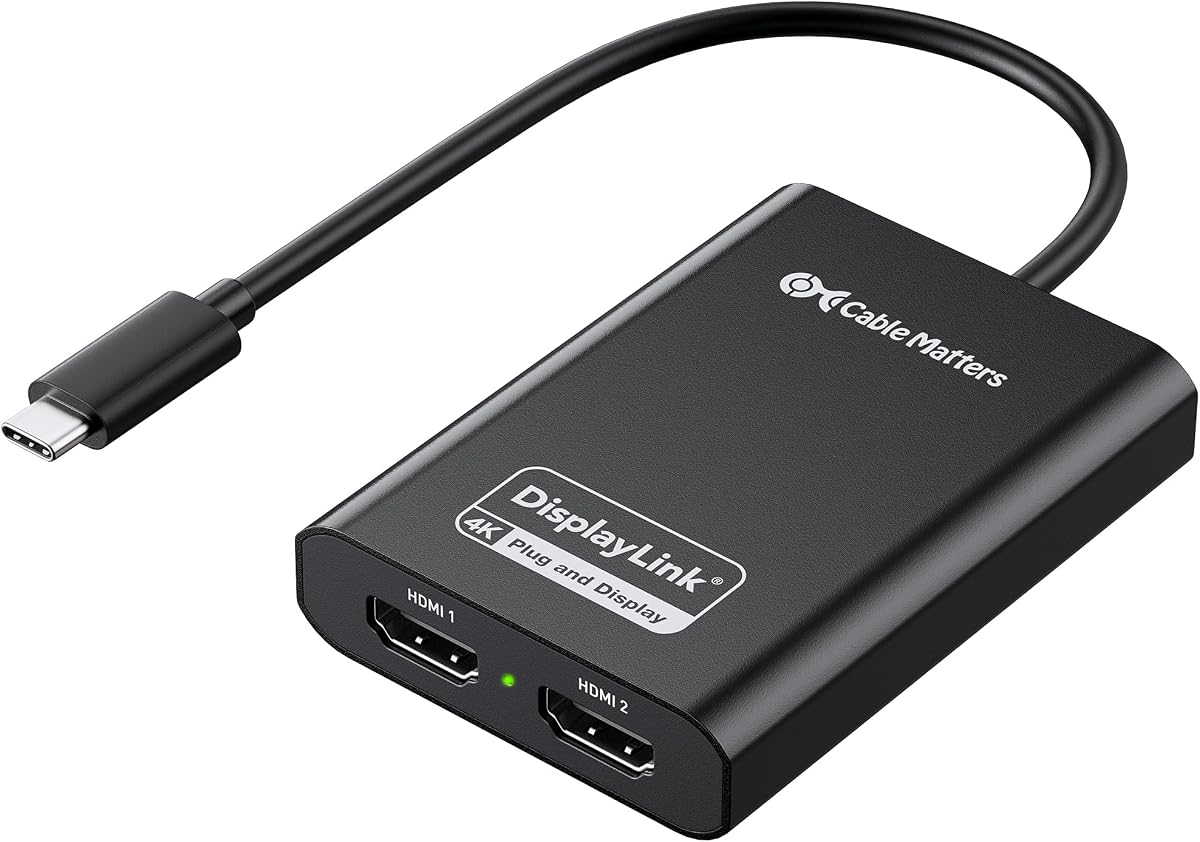
The Cable Matters USB C to Dual HDMI Adapter offers certified DisplayLink performance at a competitive price point. With a 4.0 rating, it provides reliable dual 4K60Hz outputs for Mac and Windows users needing expanded workspaces without breaking the budget.
We may earn a commission when you buy through this link, at no additional cost to you.
Its premium aluminum housing dissipates heat efficiently, ensuring stable performance during extended use. The adapter breaks Apple's single-display limit on M-series Macs, enabling true multitasking across two external screens.
While it may run warm during operation and offers fewer features than premium models, it remains a solid option for basic productivity. It supports Windows 10/11 and macOS 11+, ensuring broad compatibility.
For users seeking an affordable and reliable DisplayLink certified solution for basic multi-monitor setups, this adapter delivers good value. It balances essential features with durability for everyday office work.
DisplayLink certification ensures the adapter meets strict performance standards for video streaming and multi-monitor stability.
The aluminum alloy housing helps manage heat during operation, maintaining consistent performance during long work sessions.
We may earn a commission when you buy through this link, at no additional cost to you.
The Sonnet DisplayLink Dual 4K HDMI Adapter offers unique support for high refresh rate displays up to 144Hz on lower resolutions. With a 4.4 rating, it appeals to users needing fluid motion for specific professional workflows or creative tasks.
We may earn a commission when you buy through this link, at no additional cost to you.
Its compact design and Thunderbolt compatibility ensure seamless integration with modern laptops. The adapter supports audio output, making it versatile for media consumption alongside productivity tasks across multiple screens.
Note it includes a USB-A to USB-C adapter for broader compatibility but requires driver installation. The high refresh rate support distinguishes it from standard DisplayLink adapters that are limited to 60Hz.
If you need a DisplayLink adapter capable of driving higher refresh rate monitors for smoother visuals, Sonnet offers a compelling solution. It balances specialized features with standard compatibility for varied use cases.
This adapter supports up to 144Hz on 1080p and 1440p displays, offering smoother motion than standard 60Hz adapters.
Audio transmission is included, allowing speakers or headphones to connect through the adapter for full multimedia use.
We may earn a commission when you buy through this link, at no additional cost to you.
Selecting the right Displaylink adapter requires balancing resolution needs, connectivity ports, and platform compatibility.
Most DisplayLink adapters support dual 4K at 60Hz, which is sufficient for productivity. If you need higher refresh rates, check model specifications as many limit non-4K resolutions to 30Hz.
Prioritize adapters that support 60Hz across your desired resolution to avoid screen flicker during scrolling or video playback.
Check whether you need USB-C or USB-A inputs. Some adapters provide hybrid cables or included dongles for versatility across different laptop generations.
Ensure your laptop has enough power delivery if you want to charge while using the adapter to reduce cable clutter.
All DisplayLink adapters require driver installation. Ensure you have administrative rights and plan for setup time especially on managed corporate machines.
Review compatibility lists carefully to ensure your operating system version is supported before purchasing.
Confirm macOS, Windows, or ChromeOS support based on your workflow. Macs typically need the DisplayLink Manager app and specific permissions enabled.
Linux and iPad support is often limited or unavailable so verify if your specific OS is included in the product documentation.
Look for aluminum housings to ensure efficient heat dissipation during extended operation. Cheap plastic enclosures may overheat and throttle performance over time.
Check the cable length and durability ratings to ensure the adapter fits your desk setup comfortably.
Adapters with 100W Power Delivery can charge your laptop while driving external displays reducing the need for a separate charger.
Ensure the power rating meets your laptop requirements to avoid draining the battery during heavy use sessions.
Some adapters include audio outputs or USB hubs for keyboards and mice. Decide if you need extra ports to simplify your desk setup.
Check if the adapter supports audio transmission to your monitors if you want to route sound through external speakers.
Longer warranty periods like 12 months or lifetime support provide confidence. Review the support channels available for troubleshooting driver issues.
Established brands often offer better technical support which is valuable when dealing with complex display setups.
Install the latest DisplayLink drivers from the official website before connecting the adapter. Restart your computer to ensure the drivers load correctly.
Connect the adapter to a powered USB 3.0 or Thunderbolt port for best performance. Use high-quality HDMI or DisplayPort cables to avoid signal interference.
Keep the adapter in a cool well-ventilated area during use. Avoid bending the cable sharply and store it loosely when packing for travel to extend lifespan.
No, DisplayLink adapters require driver installation to function. The drivers enable the software compression technology that sends video data over USB. Without them, the adapter will not output video to connected monitors.
DisplayLink adapters are not recommended for gaming due to latency and bandwidth limitations. They excel at productivity tasks like browsing and spreadsheets but struggle with fast-moving video content required for games.
Most DisplayLink adapters do not support HDCP protected content like Netflix or Hulu. This is a security limitation of the technology. Use your laptop's native display or a standard HDMI connection for streaming.
Yes, specific DisplayLink adapters are designed to bypass the single-monitor limit on Apple Silicon Macs. Ensure you install the DisplayLink Manager and enable Screen Recording permissions in macOS settings.
Some adapters support up to six monitors in total across a system using multiple adapters. Each adapter typically handles two external screens so check the specifications for your specific OS and CPU requirements.
Flickering often results from outdated drivers, insufficient power, or cable issues. Update the DisplayLink software, ensure the laptop is plugged in, and check that cables are securely connected.
Most modern adapters are bus-powered through USB 3.0 ports. However if your laptop does not supply enough power you may need a powered hub or a separate power source for stable operation.
HDMI adapters connect directly to HDMI monitors while DisplayPort adapters require a DP to HDMI cable if your monitor lacks DP inputs. Both work similarly with DisplayLink but choose based on your monitor's ports.
Our top picks include the ACASIS Dual DP adapter for overall value, the WAVLINK USB 3.0 for budget-friendly setups, and the Plugable model for premium reliability. Each offers distinct advantages depending on your specific laptop and workflow requirements.
Prioritize models that match your operating system and resolution needs. Consider power delivery features to keep your workspace tidy and ensure the adapter supports the specific ports available on your devices.
Always verify current prices and availability before purchasing since deals change frequently. Checking customer reviews and warranty terms will further ensure you select an adapter that meets your long-term needs.