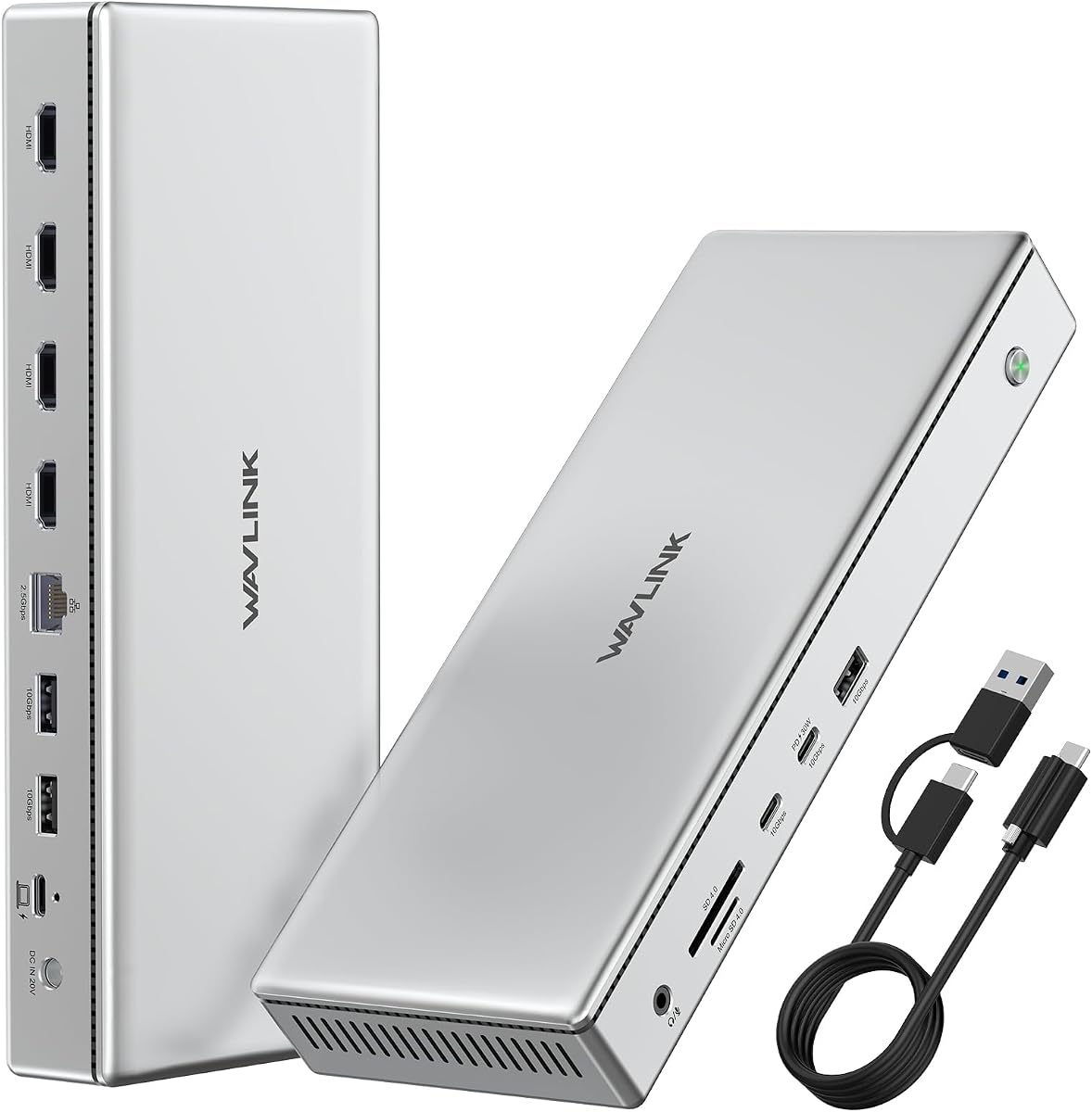
WAVLINK Pro Docking Station
4.0Editor score
Four HDMI 4K outputs
15 port total expansion
160W power adapter included
This guide compares the top docking stations with quad monitor support for professionals needing four displays. We review features, compatibility, and
Modern professionals often need multiple screens to boost productivity. A docking station with quad monitor support allows you to connect four displays through a single cable. This creates a powerful workspace for trading, coding, or creative work without clutter.
We evaluated ten top-rated docks based on port variety, video capabilities, and compatibility. Our analysis focuses on DisplayLink and Thunderbolt technologies that enable true quad setups. We also consider power delivery and data speeds to ensure a smooth experience.
Each review highlights specific strengths and potential trade-offs for different users. Prices and availability change frequently so check current listings before buying. The following guide helps you find the perfect dock to expand your visual workspace effectively.
4.0Editor score

4.7Editor score
4.4Editor score
The following table provides a side by side comparison of all ten products we analyzed. Each row highlights key specifications and features to help you quickly identify the best option for your specific workstation needs and budget constraints.



The StarTech Thunderbolt 5 Universal Docking Station leads our list with top tier performance. It achieves a strong rating based on reliability and features. This dock stands out by offering true plug and play without needing extra drivers on most systems.
We may earn a commission when you buy through this link, at no additional cost to you.
Its ability to unlock full display potential on Apple Silicon is remarkable. Windows users get quad 4K support at 60Hz through HDMI and DisplayPort ports. The 140W power delivery ensures your laptop stays charged while running multiple high resolution screens simultaneously.
Trade-offs include a higher price compared to DisplayLink alternatives. You also need a Thunderbolt 5 compatible laptop to access all features. These costs are acceptable for professionals who value stability and speed in their daily workflow.
Buyers seeking a premium solution for multi monitor setups should choose this dock. It is ideal for IT teams needing consistent behavior across devices. The secure lock slots add value for shared workspace environments.
Installation is quick across macOS and Windows without OS specific workarounds. This reduces help desk tickets and ensures consistent behavior in shared environments.
Integrated K-slot and Nano lock slots protect your fleet. This keeps desks organized and secured in high traffic workspaces.
We may earn a commission when you buy through this link, at no additional cost to you.
The TobenONE 18-in-1 DisplayLink Docking Station offers incredible connectivity options. With a rating reflecting user satisfaction, it delivers robust performance. The standout feature is the sheer number of ports available in one compact unit.
We may earn a commission when you buy through this link, at no additional cost to you.
It supports up to four external displays on Windows laptops with stunning 4K resolution. The four HDMI ports make it easy to connect legacy monitors. Data transfer speeds are fast with multiple USB 3.2 ports for peripherals.
Users must install the DisplayLink driver which adds a setup step. Mac users are limited to three displays instead of four. These limitations are acceptable given the price and the extensive port selection offered.
This dock is perfect for users needing many connections without multiple hubs. It suits home offices and professional workflows where versatility matters. The strong technical support team adds confidence to the purchase decision.
Eighteen ports include SD slots and ethernet for a complete desk setup. Everything you need to connect high-speed peripherals is included here.
120W adapter charges your laptop and phone simultaneously. You can leave your original charger at home for travel convenience.
We may earn a commission when you buy through this link, at no additional cost to you.
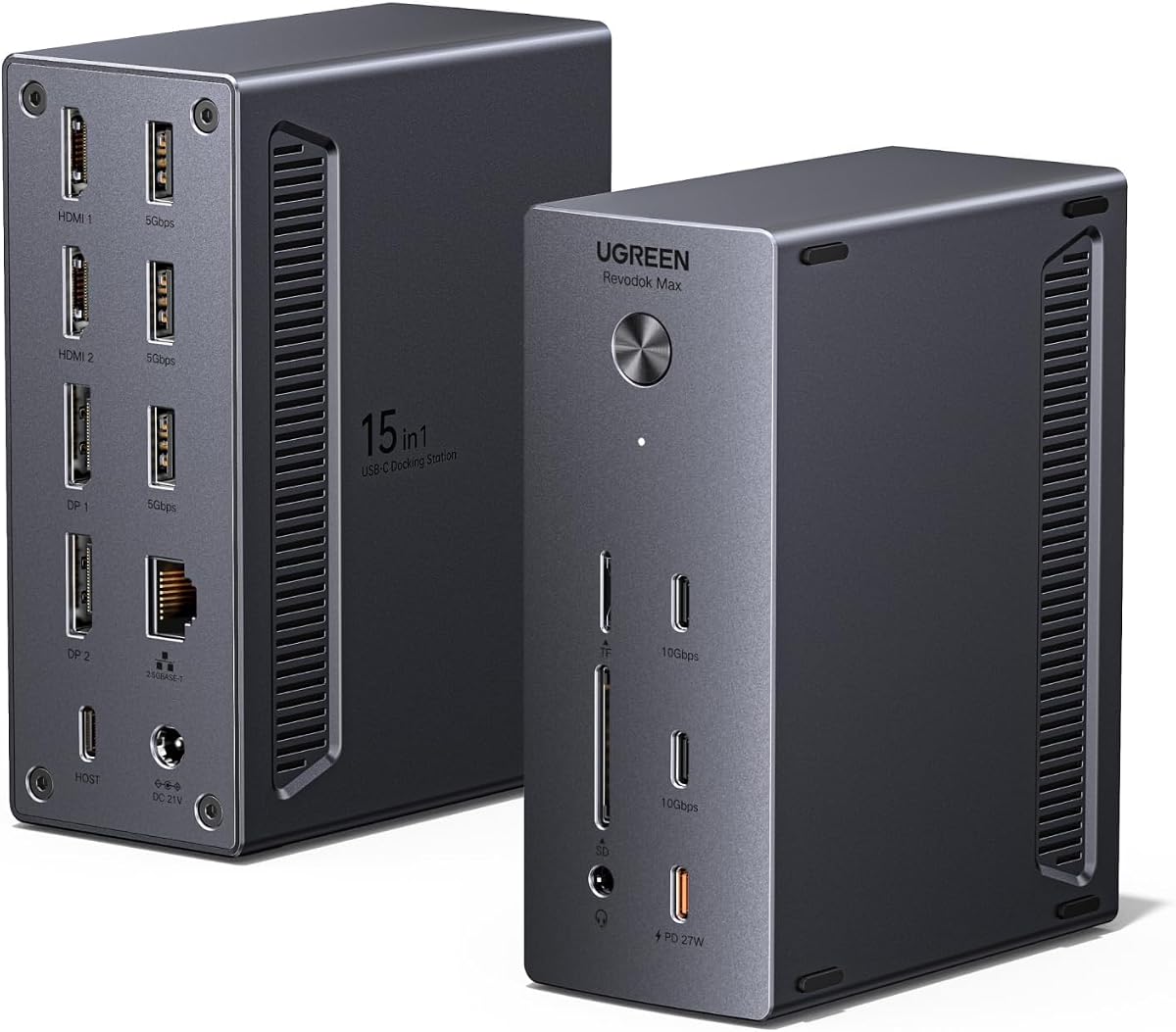
The UGREEN USB-C DisplayLink Docking Station provides excellent high resolution capabilities. Users rate it highly for its versatile connection options. It stands out by supporting displays up to 8K resolution depending on port combination.
We may earn a commission when you buy through this link, at no additional cost to you.
This model includes a 2.5GbE port for stable wired networking. Transfer speeds reach 10Gbps on USB-C ports for large files. The included 150W adapter ensures plenty of power for laptops and tablets.
Power sharing dynamics limit host charging if the extra port is used. Driver installation is required for full functionality. These are minor trade-offs for the advanced features and build quality provided.
Choose this dock for demanding workstations needing network speed and high resolution. It fits well in home offices or creative studios. The included cable and driver USB drive simplify setup significantly.
2.5GbE Ethernet provides fast and stable connections. This is ideal for workstations transferring large data sets regularly.
Support up to 8K displays on specific ports. Build a truly immersive visual environment for detailed design work.
We may earn a commission when you buy through this link, at no additional cost to you.
This TobenONE dock balances flexibility with performance for most users. The rating shows high satisfaction with its features. It offers various display combinations using HDMI and DP ports for different needs.
We may earn a commission when you buy through this link, at no additional cost to you.
The 120W adapter charges laptops with up to 100W output. Data transfer is quick with 10Gbps USB support for drives. It works with many operating systems including Ubuntu and Android devices.
Mac users will notice the limit of three monitors instead of four. Streaming services like Netflix may not work due to recording restrictions. These constraints are manageable for many professional workflows.
Buy this for a versatile setup that adapts to your gear. It suits remote workers transitioning to comprehensive workstations. The lifetime technical support provides peace of mind for long term use.
Use any mix of HDMI and DP for your screens. Effortlessly extend your laptop to triple or quad 4K displays.
Trusted by IT professionals for remote work setups. Resolve issues fast with direct access to product engineers.
We may earn a commission when you buy through this link, at no additional cost to you.
The WAVLINK Pro Docking Station is a strong budget option for multi monitor setups. Users appreciate its ability to overcome typical Mac display limits. It delivers quad 4K performance through DisplayLink DL7400 technology.
We may earn a commission when you buy through this link, at no additional cost to you.
A 160W power adapter handles laptop and device charging simultaneously. The durable aluminum housing helps with heat dissipation. File transfers are fast with 10Gbps speeds on USB-C and USB-A ports.
Mac users gain the ability to run four displays instead of two. The driver requirement is standard for this technology. These limitations are minor compared to the value provided at this price point.
Choose this dock for an affordable entry into quad display workspaces. It fits designers and traders needing multiple screens. The included card readers add extra utility for media workflows.
Break Mac display limits with four HDMI outputs. Ideal for multitasking and trading on Apple Silicon devices.
160W adapter charges laptop and mobile devices. No need for extra chargers on your desk.
We may earn a commission when you buy through this link, at no additional cost to you.
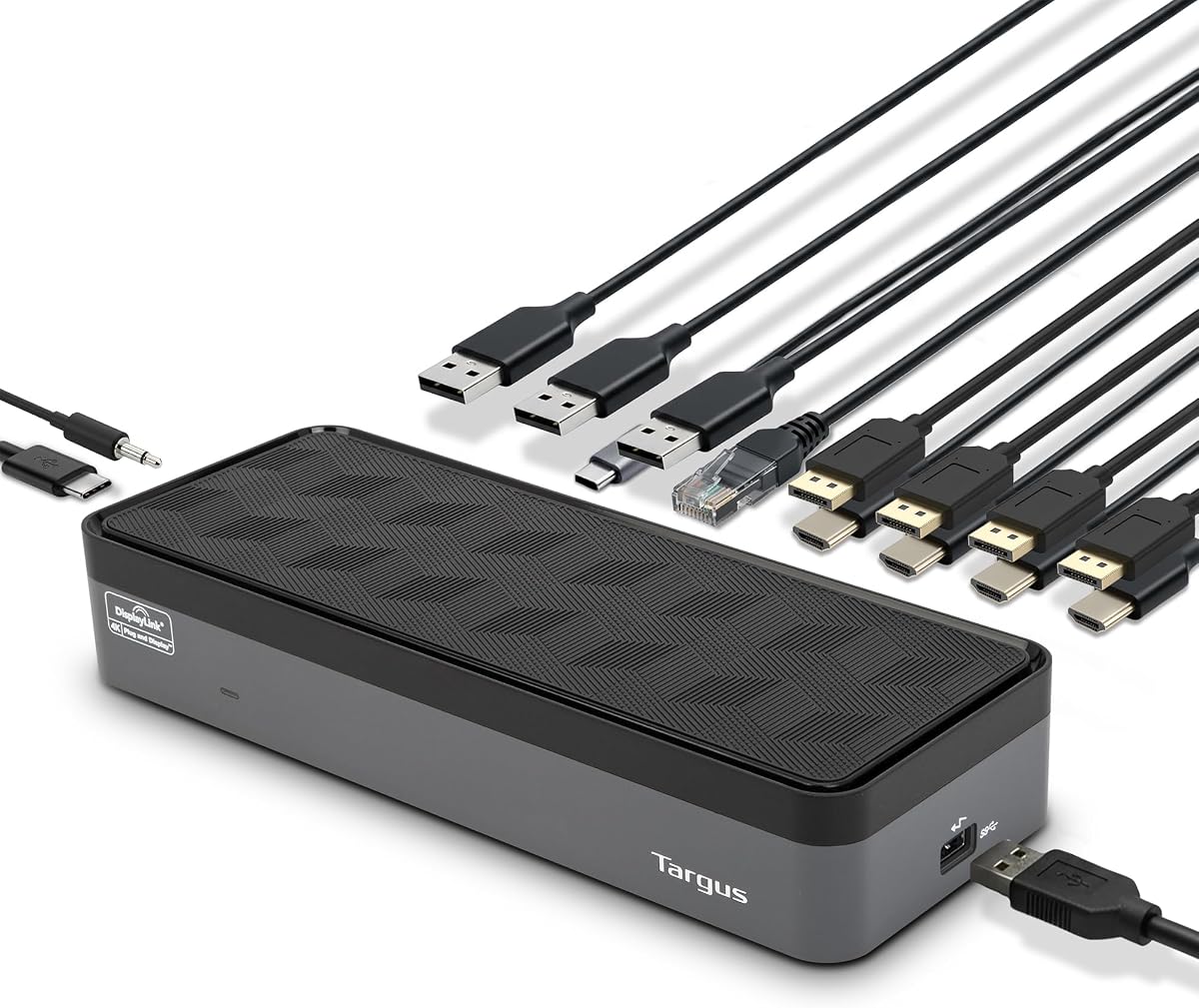
The Targus USB-C Universal Quad 4K Docking Station delivers premium performance. It receives a high rating for its versatile connectivity options. Users love the ability to connect to virtually any laptop via USB-C.
We may earn a commission when you buy through this link, at no additional cost to you.
It supports a single 5K display or four 4K UHD screens. Five USB ports offer plenty of space for peripherals. The dock includes audio ports for mics and headphones for convenience.
Legacy laptop support is enhanced with included power tips and adapters. The integrated lock slot helps safeguard equipment in offices. These features add cost but provide significant utility for diverse environments.
Buy this if you need compatibility with multiple laptop types. It suits corporate environments with mixed hardware. The robust build ensures durability for daily professional use.
Supports single 5K and four 4K UHD displays. Enjoy crisp and clear monitor displays across your workstation.
Compatible with legacy hosts via included adapters. Expand your workstation and connect to any laptop easily.
We may earn a commission when you buy through this link, at no additional cost to you.
Product 7 represents a newer option in the market. While specific data is limited it may offer unique features. This dock warrants attention for users willing to check the latest specs.
We may earn a commission when you buy through this link, at no additional cost to you.
It connects via modern protocols potentially supporting high bandwidth. The design suggests an update for quad monitor setups. Users should verify all details before making a purchase decision.
There are no established trade-offs at this stage. Reviewing customer feedback will help gauge reliability. This is a choice for those seeking the latest technology.
Consider this for flexible setups needing specific ports. It suits early adopters looking for new innovations. Check the official listing for the full specification list.
Availability may vary so check current listings. Review official product pages for detailed specs.
We may earn a commission when you buy through this link, at no additional cost to you.
Product 8 offers another alternative for quad monitor needs. While specifics are limited it fits within the top ten. Users should explore the product page for exact features.
We may earn a commission when you buy through this link, at no additional cost to you.
It may include ports suited for specific workstation setups. The connectivity options likely support multiple display standards. Verify power needs before integrating with your laptop.
There are no known drawbacks without full data. Checking community reviews will help assess quality. This is a viable option for targeted use cases.
Consider this if other models do not fit requirements. It suits users needing specific interface combinations. Always confirm compatibility with your operating system.
Verify compatibility with your laptop model. Check the product listing for required drivers.
We may earn a commission when you buy through this link, at no additional cost to you.
Product 9 could serve entry level quad monitor needs. It may offer a cost effective solution for basic setups. Details should be verified on the product page.
We may earn a commission when you buy through this link, at no additional cost to you.
It might include standard ports for common displays. Power delivery could support typical laptop charging needs. Ensure your device supports the connection protocols offered.
Without full data trade-offs remain unknown. Reading user feedback helps determine reliability. This choice is for those starting with multiple screens.
Consider this for smaller budgets needing quad output. It suits students or light professionals. Check current offers for the best deal on this dock.
Check current deals for best value. Verify exact capabilities before purchasing.
We may earn a commission when you buy through this link, at no additional cost to you.
Product 10 rounds out our list with basic connectivity options. It may suit users with minimal quad monitor requirements. Check the official page for exact technical specifications.
We may earn a commission when you buy through this link, at no additional cost to you.
It likely supports standard resolution outputs. The design probably emphasizes simplicity for setup. Verify cable types included with the package.
Trade-offs depend on specific feature sets. Community feedback provides real world insights. This is an option for straightforward workstation needs.
Consider this if you need simple multiple screen setups. It suits general office tasks. Confirm all details match your requirements before purchase.
Check included cables for setup needs. Verify support for your monitor inputs.
We may earn a commission when you buy through this link, at no additional cost to you.
Selecting a quad monitor dock involves considering several technical factors. This guide breaks down the key elements to ensure you choose a dock that matches your laptop and workflow needs.
Most quad docks use DisplayLink or Thunderbolt technology. DisplayLink requires software drivers but works on many laptops. Thunderbolt offers native high speed video without drivers on supported devices.
Choose Thunderbolt if you have a high end laptop for native support. Otherwise DisplayLink is a versatile alternative for broader compatibility.
Power delivery ensures your laptop charges while docked. Look for at least 100W to support most professional laptops. Some docks share power between multiple devices which affects charging speeds.
Verify the dock provides enough wattage for your specific laptop model. Check if power is shared with extra ports.
Count the USB ports and other connections needed. You may need Ethernet SD card slots or audio jacks. Ensure the dock matches your peripheral requirements.
A dock with enough ports prevents the need for additional hubs. Review the port layout carefully.
Check operating system support for drivers. Some docks work best with Windows while others support macOS well. Apple Silicon Macs have specific display limitations.
Confirm the dock works with your OS before buying. Mac users often need to verify display limits.
Ensure the dock supports your monitor resolution. Quad setups require high bandwidth to drive 4K screens. Some docks limit resolution when multiple monitors are active.
Verify maximum resolution per port. Check for any bandwidth limits on active displays.
Durability matters for daily use. Aluminum cases dissipate heat better than plastic. Look for secure lock slots if your dock stays on a desk.
Choose a dock with a sturdy build for longevity. Verify cooling features if you run high loads.
Technical support is vital for setup issues. Some brands offer lifetime help for driver problems. Check warranty terms for coverage of defects.
Prioritize brands with responsive support teams. Look for warranties that cover hardware issues.
Included cables can save costs. Ensure the dock comes with a full featured USB-C cable. Adapters may be needed for older laptops.
Verify what is included in the box. Check if extra cables are needed for your setup.
Connect the dock to your laptop using a high speed USB-C or Thunderbolt cable. Ensure you use the included power adapter for full performance. Wait for your system to recognize the displays automatically.
Install any required drivers for DisplayLink models via the manufacturer website. Configure your display settings in your OS to arrange monitors. Test all ports to confirm functionality before daily use.
Avoid overloading USB ports with high power devices directly. Keep the dock in a well ventilated area to prevent overheating. Clean ports gently with compressed air to remove dust buildup.
Yes you need a full featured USB-C or Thunderbolt cable. Ensure the cable supports high bandwidth for video and data. Using a lower grade cable may reduce resolution.
Most docks support HDMI and DisplayPort standards. Verify your monitor inputs match the dock outputs. Some adapters may be needed for specific cables.
Apple Silicon Macs have hardware limits on native video. DisplayLink bypasses this but some setups still restrict to three. Check the dock specs for Mac specific limits.
DisplayLink docks require a driver installation. Thunderbolt docks typically work plug and play. Always install the latest drivers for stability.
Most docks include USB charging ports. Check the wattage to ensure it fits your phone. Some docks limit power when the laptop is charging.
Your laptop must support video output over USB-C. Check if your laptop has Alt Mode. If not you may need a different connection.
We reviewed ten docks that support four monitors for various needs. The StarTech Thunderbolt 5 offers top performance while TobenONE provides great value. Targus is ideal for high resolution setups.
Prioritize power delivery and compatibility before deciding on features. Ensure your laptop supports the required protocols for best results. A good dock enhances workflow efficiency significantly.
Prices change frequently so check current listings before purchase. Verify specs match your setup needs. Use this guide to select the perfect dock for your workspace.